> For the complete documentation index, see [llms.txt](https://t1t.gitbook.io/trust1sign/llms.txt). Markdown versions of documentation pages are available by appending `.md` to page URLs; this page is available as [Markdown](https://t1t.gitbook.io/trust1sign/simplesign-en-_windows/user-manual/settings-the-3-bars-menu.md).
# Settings: the 3-bars menu
In the top right corner of the app there is a 3-bar button. Pressing this button leads you to the configuration menu.
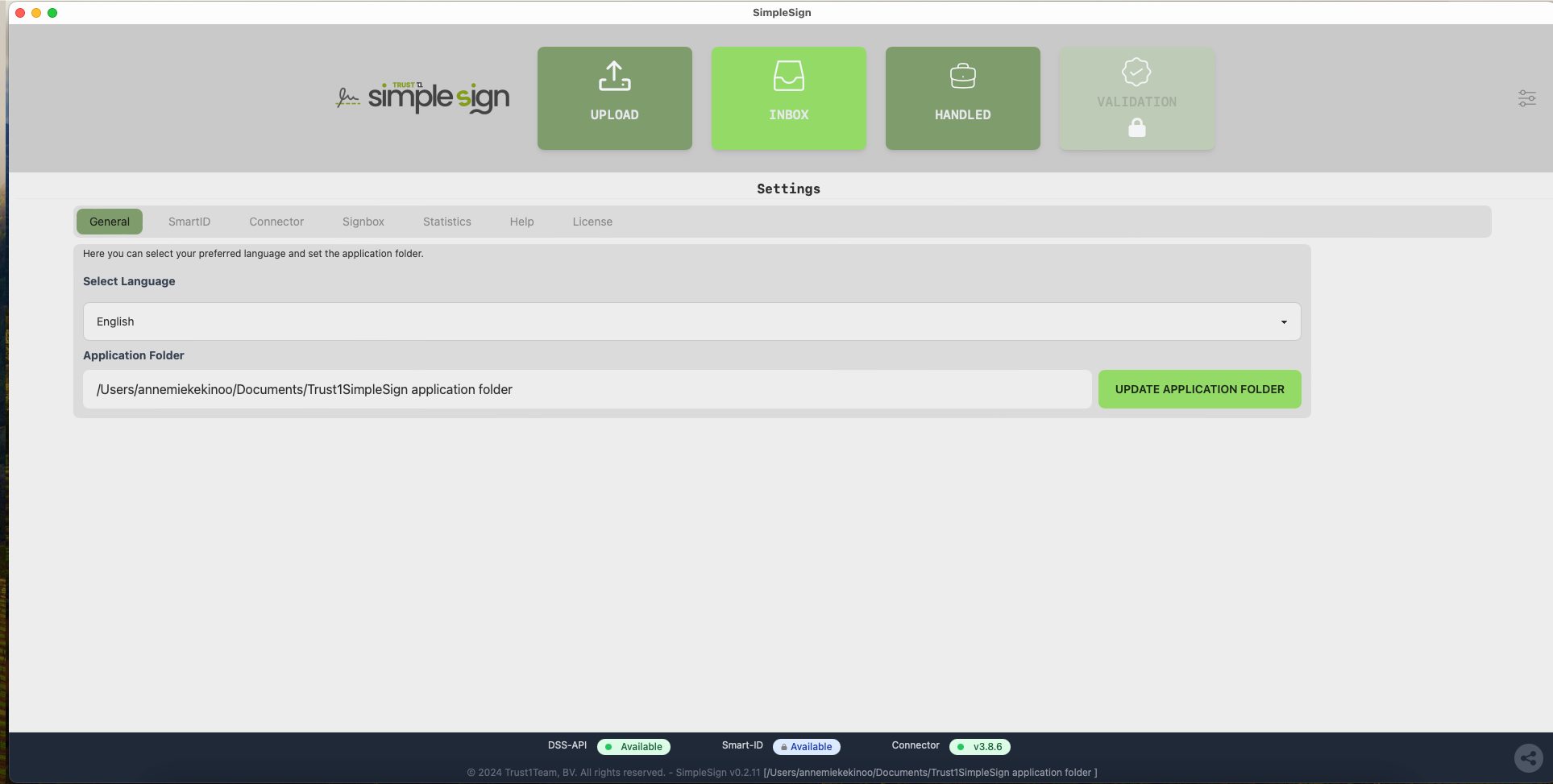
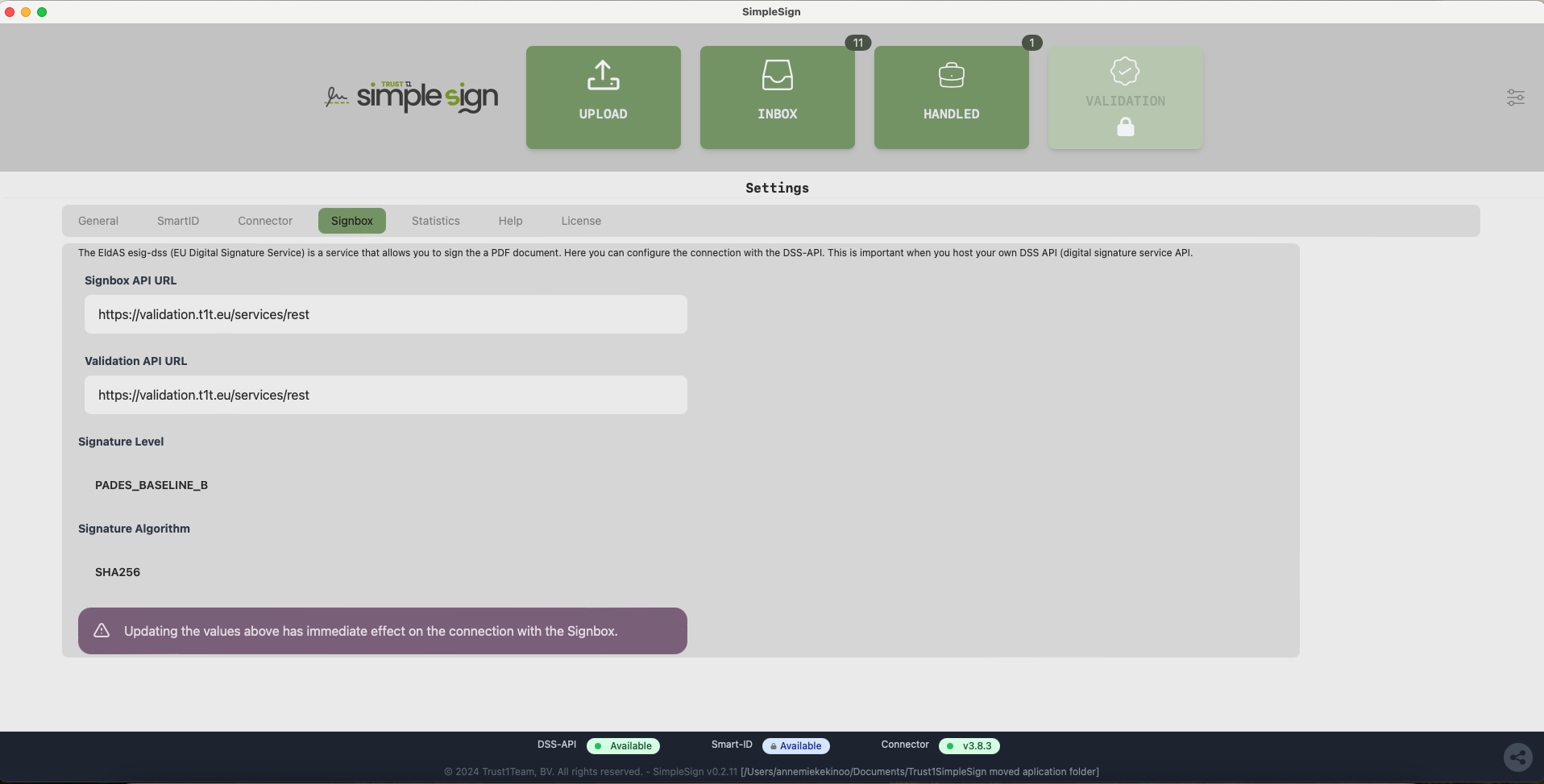
By default the menu opens on the general tab. There are 7 tabs. For the end-user six tabs are of importance. The signbox tab is important for you helpdesk to troubleshoot in case you need support.
### General tab
#### Select language
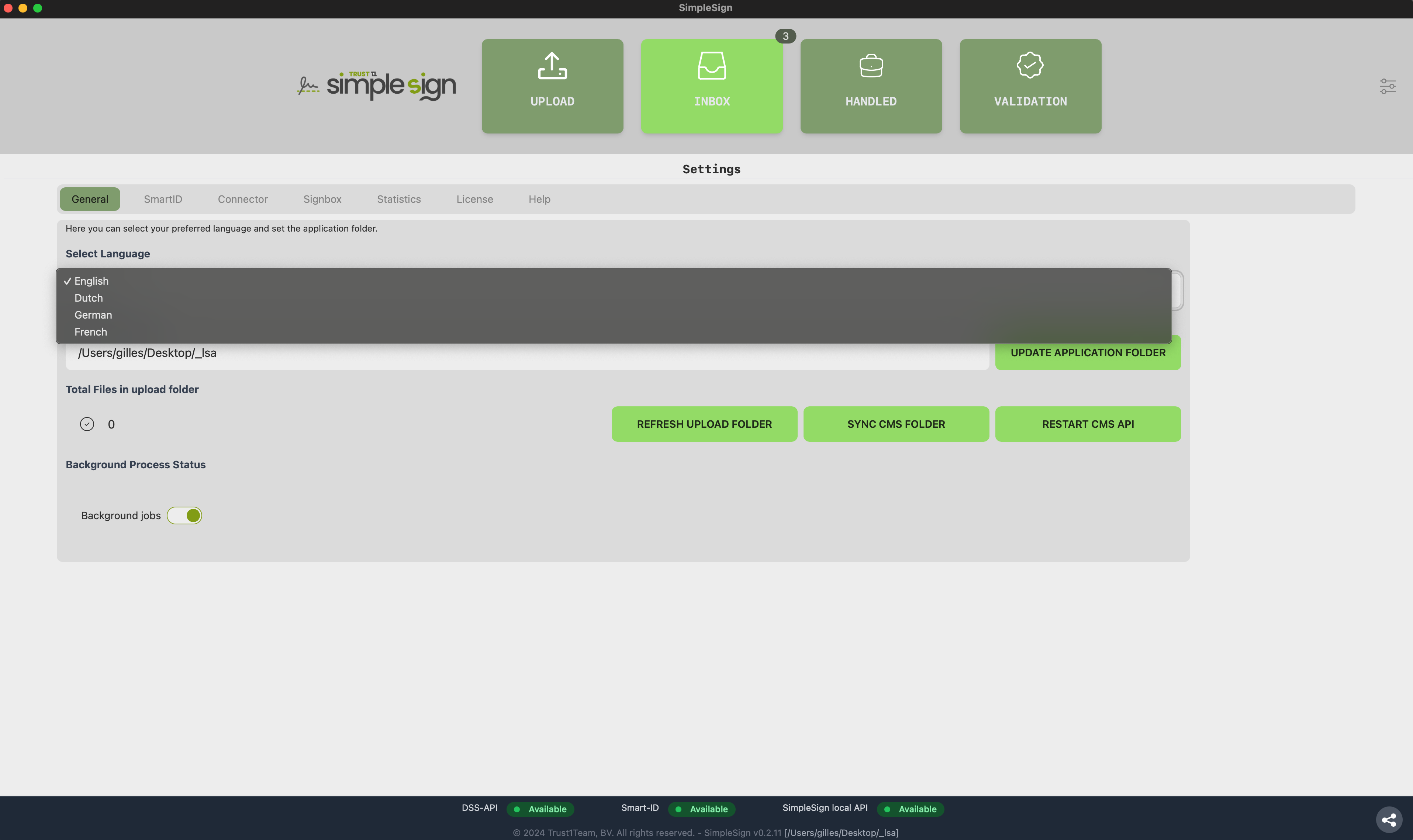
As depicted above, the general tab gives you the possibility to change the language of the application. Pressing the triangle on the right side next to the selected language, will give you a drop down menu with the available languages (currently English, Dutch, German and French).
Select the language you want. The application will refresh itself.
#### SimpleSign CMS API
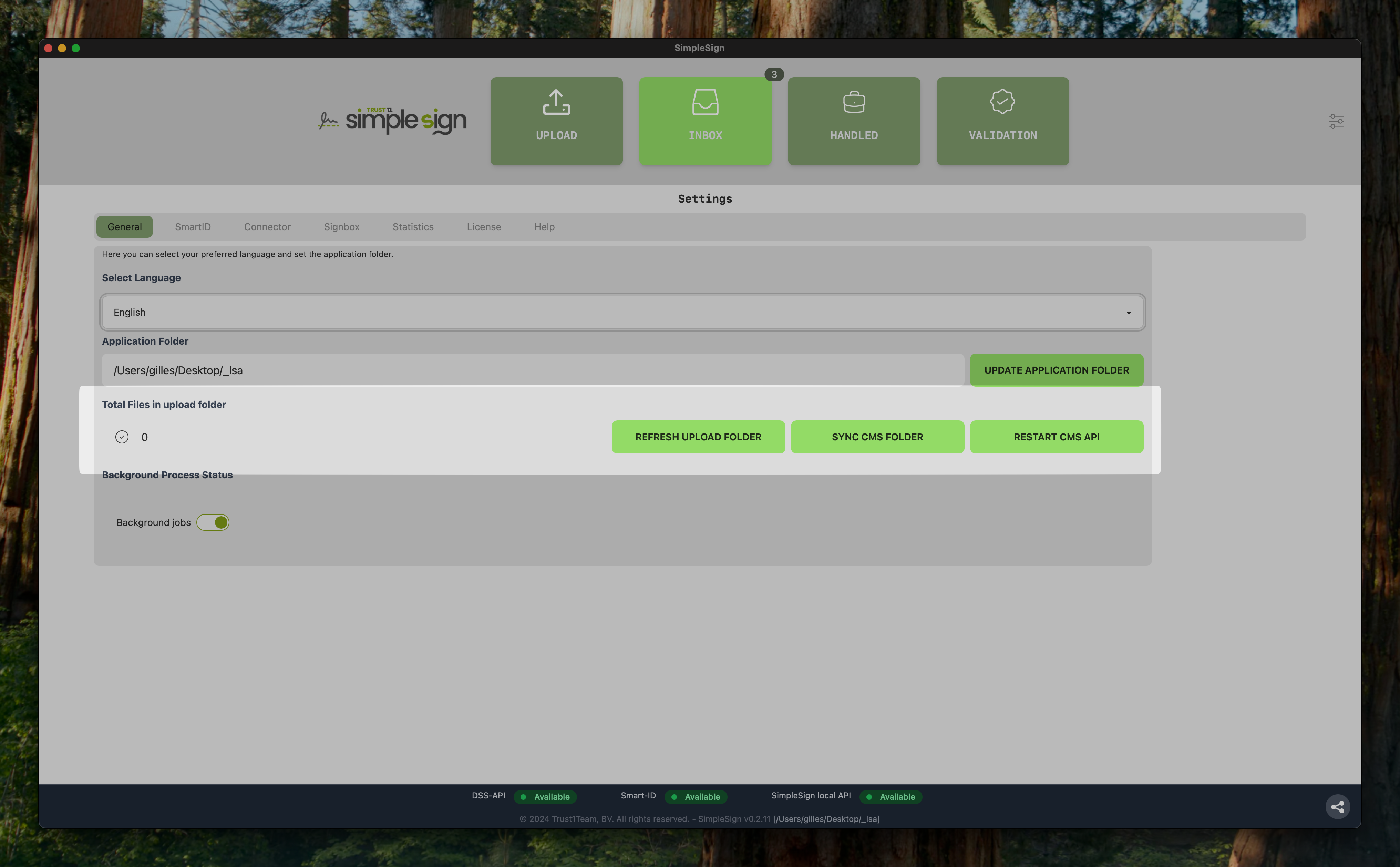
In the SimpleSign CMS API section which resides in the General tab you can see the total amount of uploaded files.
Next to that there are 3 buttons;
* Refresh Upload folder; this will manually check inside the upload folder for new files
* Sync CMS folder; This will manually re-sync all the Signed documents.
* Restart CMS API; This will manually re-start the CMS API, the status of that API can be found in the footer (SimpleSign local API)
#### Application folder
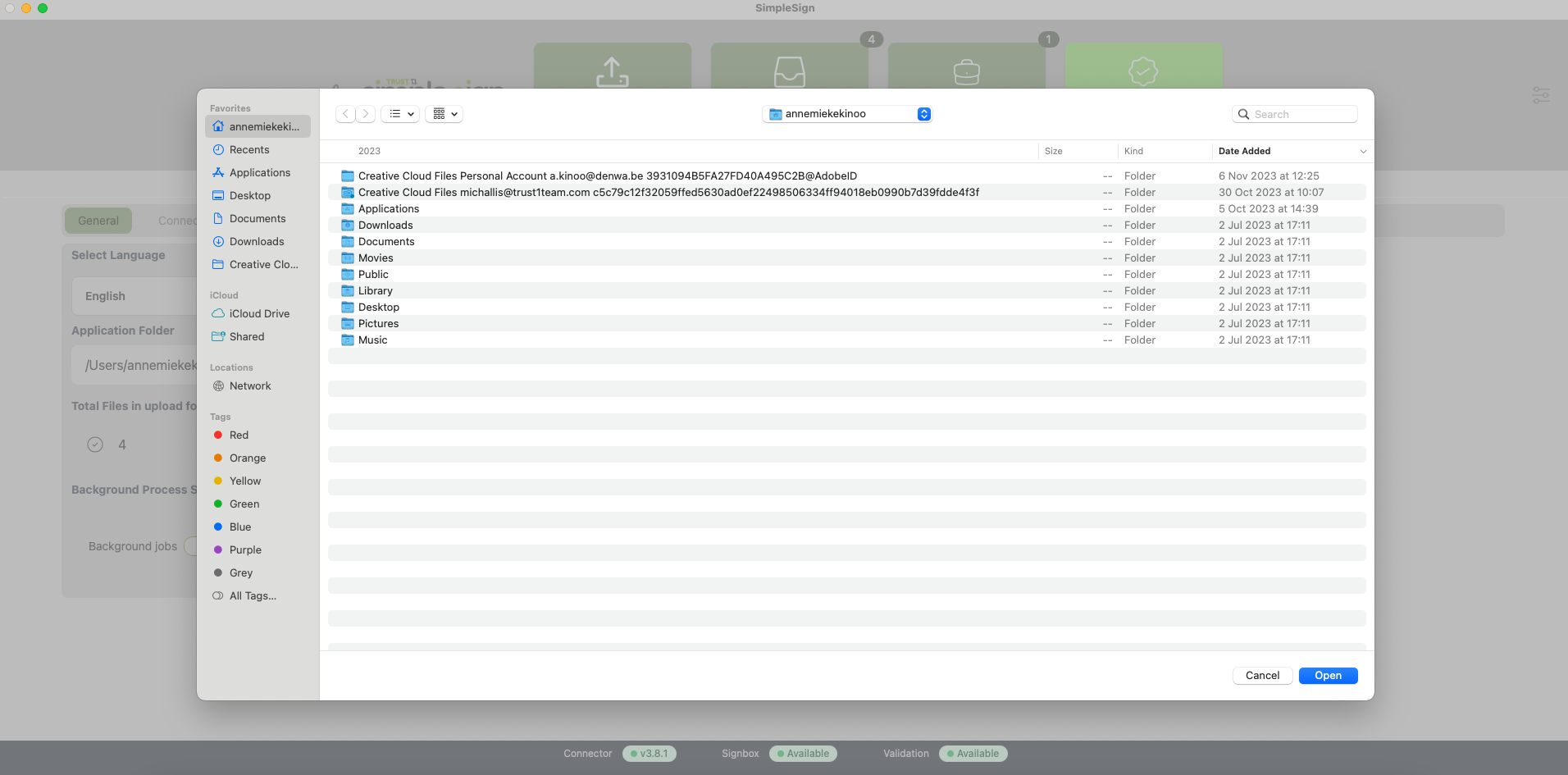
Beneath the Select language you will see the Button Update Application Folder. The path to your current local archive is indicated here. By pressing the green button next to the path you can change to location of your application folder.
Pressing the green button will open a file explorer window. You can select a new location for your application folder or cancel the action.
Your documents are automatically moved to your new application folder.
### Smart-ID tab
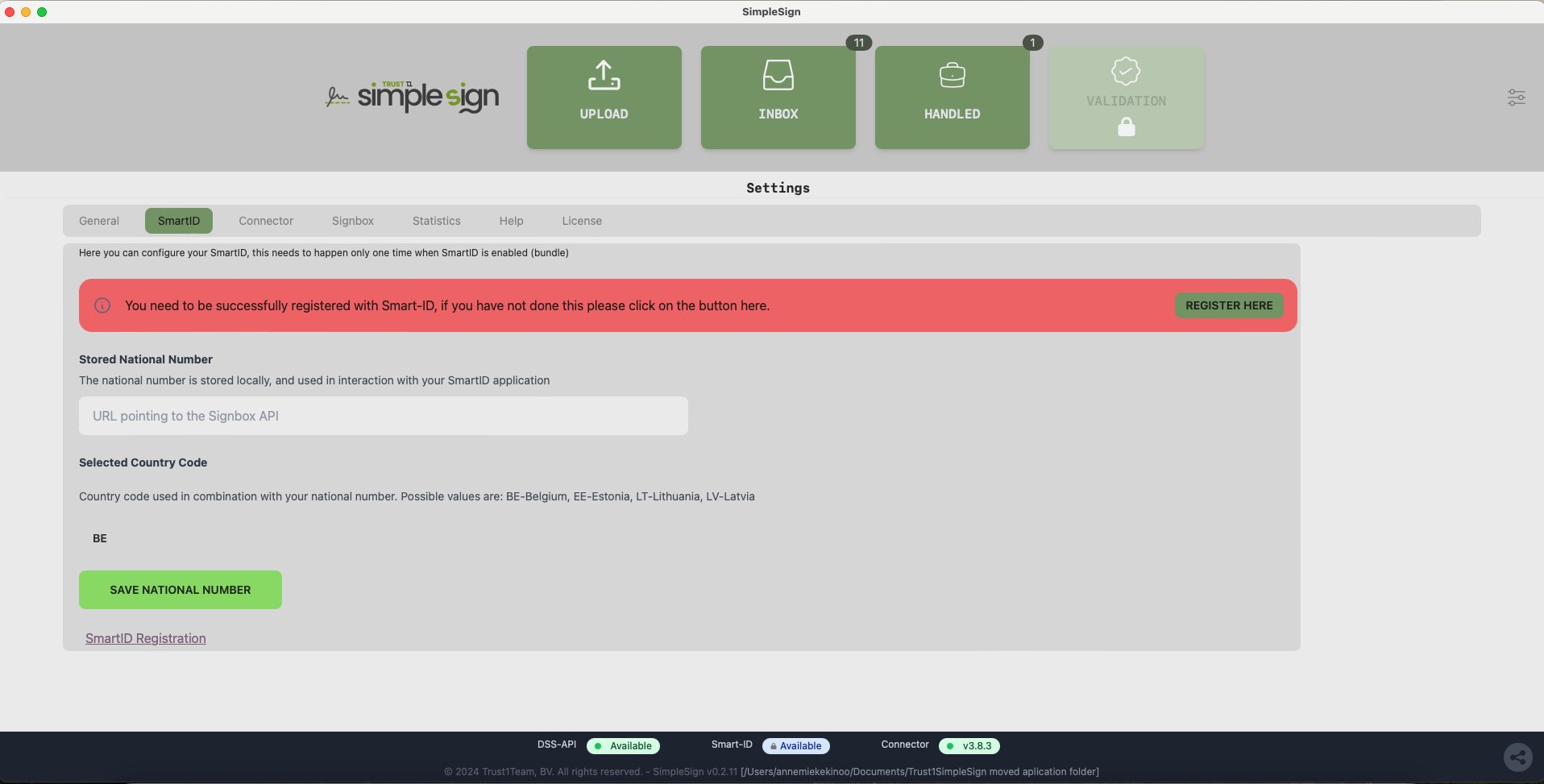
This is the tab in which your Smart-ID settings are stored. If you have not yet made a Smart-ID account, you find the links to the registration page in this tab.
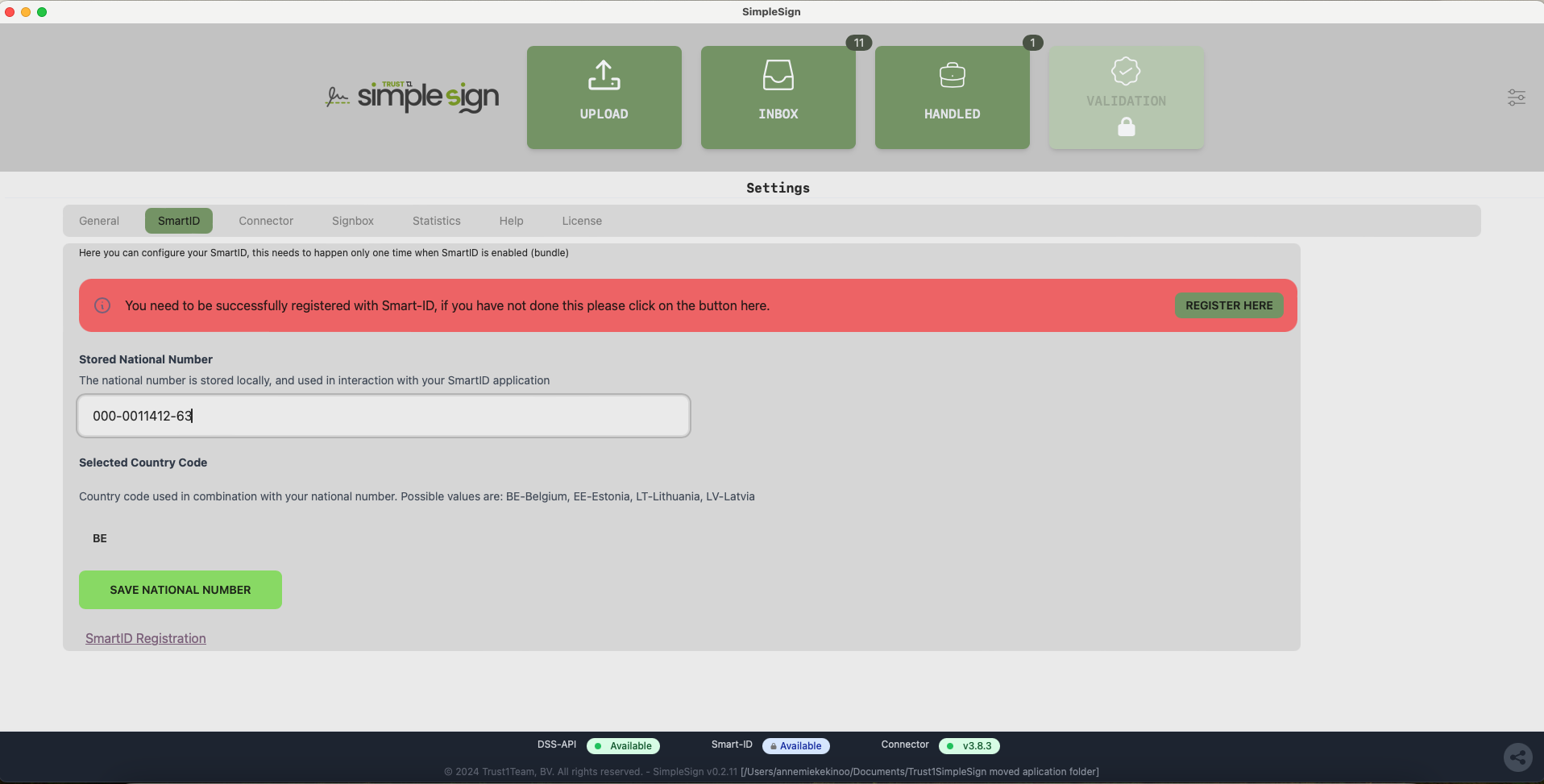
If you already have an account, fill in your National Number in the light grey field. This number is stored locally and will only be used in combination with your Smart-ID account. Choose the country that goes with your national number.
After entering a correct combination of national number and corresponding country code the red warning field will disappear.
### Connector Tab
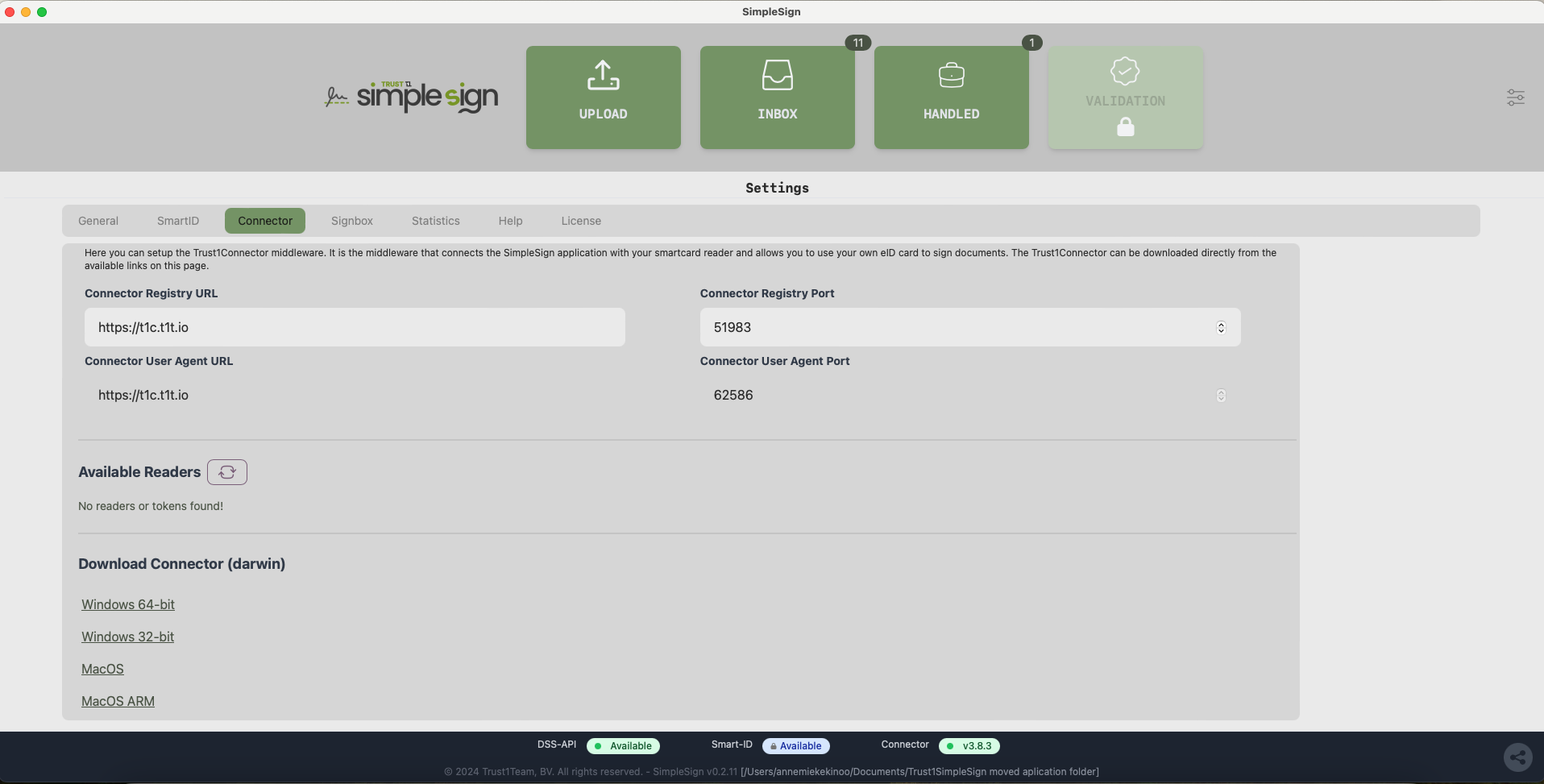
The connector tab indicates which URL’s and ports are used by the application.
Do not change these values as they will impact the correct working of the application.
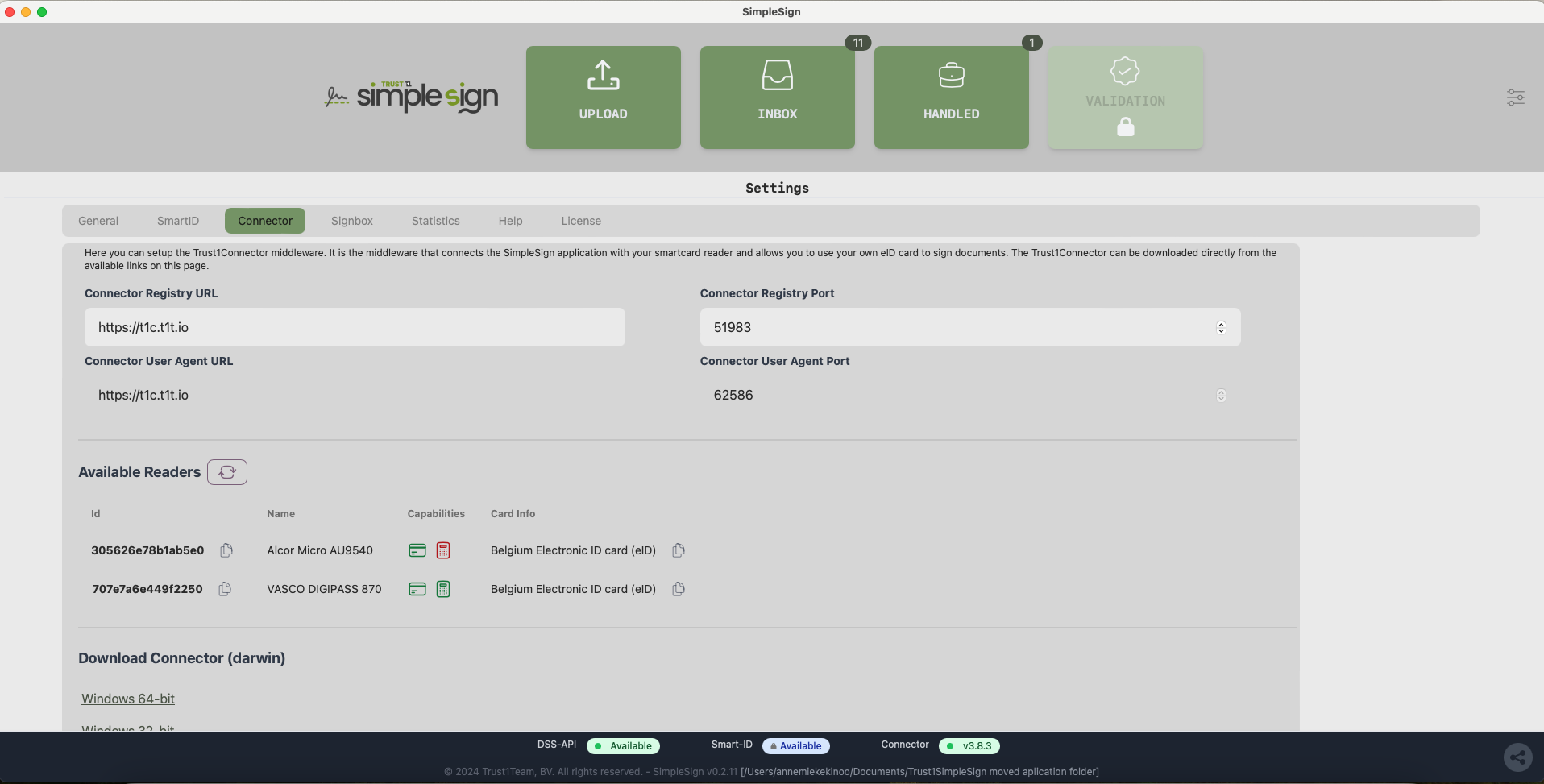
Beneath the URL’s you find an overview of all the cardreaders, tokens, ID’s that the are connected to your device and detected by the Trust1Connector. You can push the refresh button to renew the list. When you have just inserted a new card, you can use the refresh button to expedite the detection of the new card.
The following information about you ID’s is visualised:
| ID | Unique number of the ID |
| ------------ | ------------------------------------------------------------------------------------------------------------------------------------------------------------------------------------------------------------------------------------------------------------------------------------------------------------------------------------------------------------------------------------------------- |
| Name | Name of the type of card reader used |
| Capabilities |
The pictogram of a card indicates if an ID is inserted in the reader. If this pictogram is green the ID card is detected. If this pictgram is red there is no card inserted or detected.
The pictogram of the pin-pad indicates if the card reader has a pin-pad. If this pictogram is green the card reader has a pin-pad. If this pictogram is red the card reader has no pin-pad.
|
| Card Info | Information on what kind of ID card is inserted and detected in the reader. |
The copy pictogram behind the ID and the Card Info allows you to copy the information for troubleshooting purposes.
### Signbox
In this tab the path to the signbox is indicated. As indicated on this screen DO NOT change these values as they will impact the correct working of the application.
This tab will help your helpdesk troubleshoot.
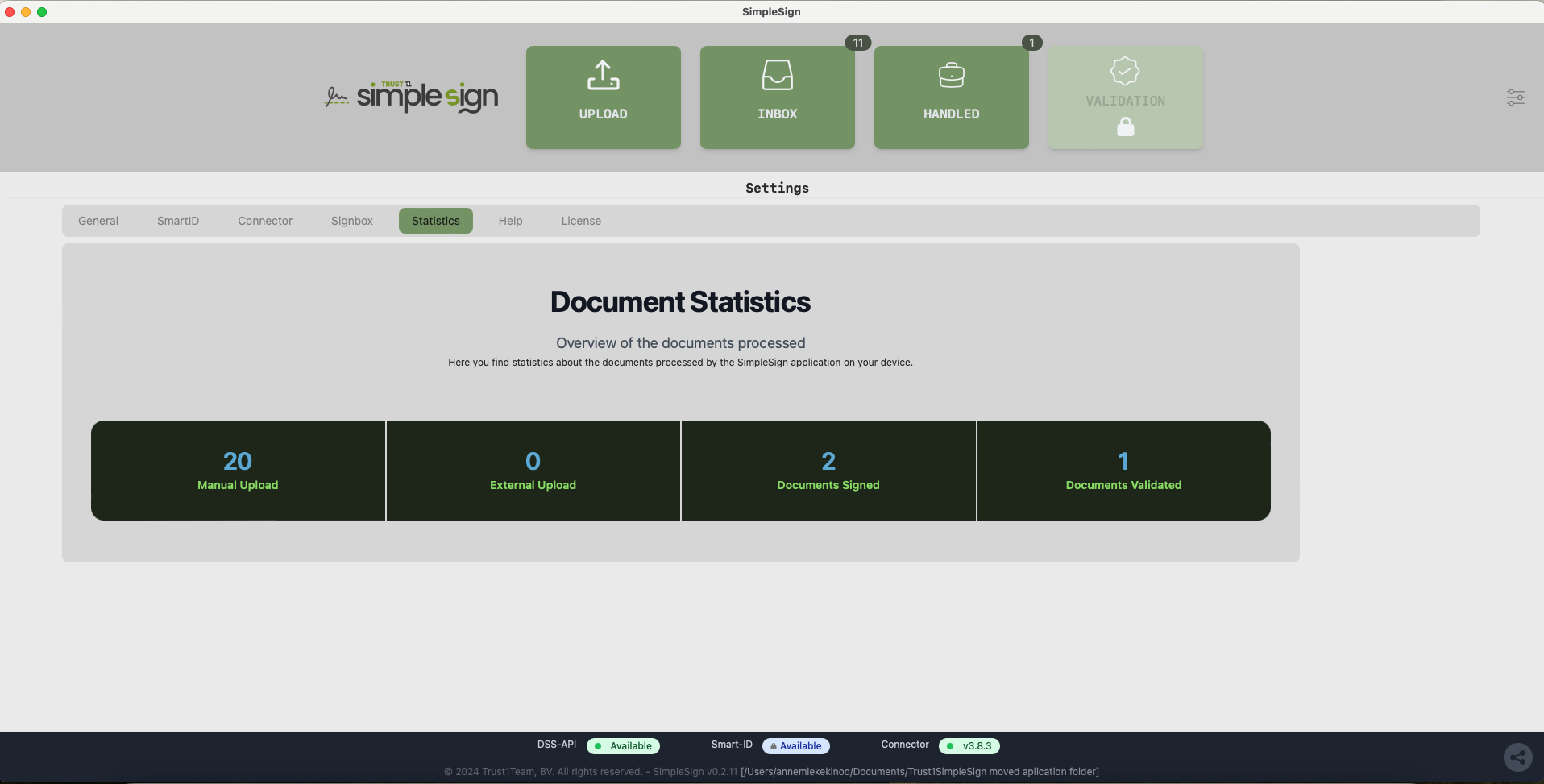
### Statistics
The statistics tab gives an overview of the number of documents that you have processed.
| Manual Upload | Number of document that you have manually uploaded |
| ------------------- | --------------------------------------------------------- |
| External Upload | Number of documents that the CMS has pushed to your inbox |
| Documents signed | Number of documents that you have signed |
| Documents validated | Number of documents that you have validated |
### Help
In this tab you find the links to the online manual and feedback form. We love to hear from you. Any suggestions that help us improve our product are very welcome.
### License
In this tab you find your license key and you can upgrade the application to a paying subscription.